How to Check if a PDF Is Really Redacted (Before You Send It)
The black boxes are in place and the document looks finished. But "looks redacted" and "is redacted" are different things — and the gap between them is where leaks happen. Here's how to be sure.
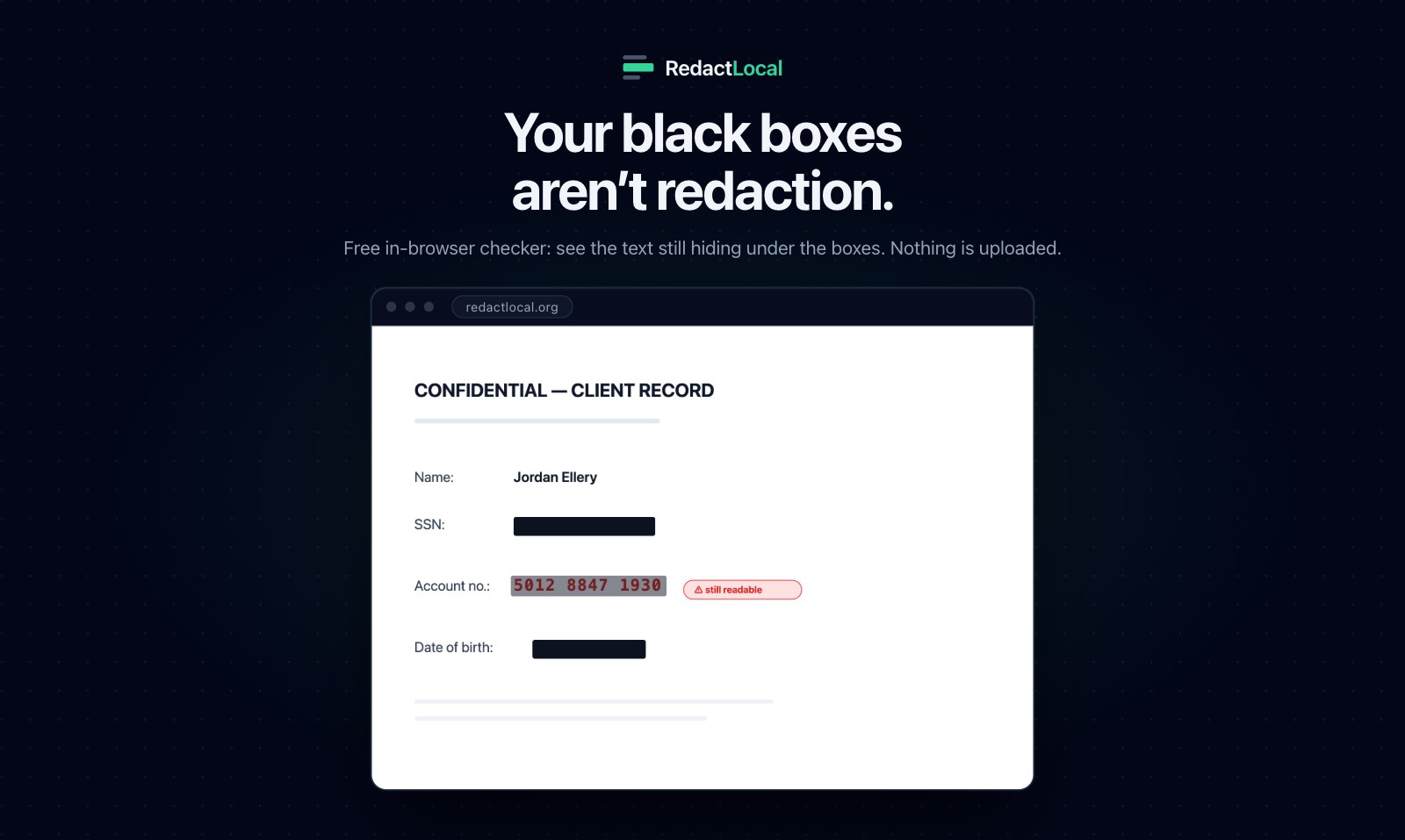
A redaction failure almost never looks like a failure. The page looks perfect — clean black bars over every sensitive line. The document goes out. And then someone selects the text under a bar, copies it, and reads the thing you thought you had removed.
This is one of the most repeated mistakes in law, government and business, and it keeps happening because the broken version and the correct version are visually identical. The only way to tell them apart is to check. It takes about thirty seconds, and you should do it on every document before it leaves your hands.
Why the Black Box Often Isn't Enough
When you draw a black rectangle over text in most PDF editors, you are not deleting the text — you are drawing a shape on top of it. The characters remain in the file underneath, at their original positions, fully intact. We take the mechanism apart in The Black Box Flaw; the short version is that a cover is not a deletion, and anything still present in the file can be recovered.
So the question for any "redacted" PDF is simple: is there still recoverable text where the black boxes are? Here are three ways to answer it, from quickest to most thorough.
Method 1: Select and Copy
The fastest sanity check needs nothing but the PDF viewer you already have.
- Open the PDF.
- Press
Ctrl+A(orCmd+A) to select all text on the page, or drag to select directly over a black box. - Copy, and paste into a plain text editor.
If the "redacted" words appear in your text editor, the redaction failed — the text is still in the file. This catches the most common failures instantly. It is not exhaustive, though: some viewers select text oddly, and it only tells you about the page you tested.
Method 2: Extract the Text With pdftotext
For a definitive, whole-document check, extract the text layer directly. The pdftotext utility (part of Poppler, available on most systems) does exactly what an attacker would:
pdftotext redacted.pdf -
This prints every character the file still contains. Search the output for a value you redacted — a name, a number. If it appears, the text is recoverable and the document is not safe to release. A correctly redacted (flattened) document returns nothing but whitespace.
This is the professional standard. If you handle filings, records or reports, running pdftotext over the finished file before release is the single best habit you can build. It is the same test the other side will run.
Method 3: The Leak Checker (No Terminal, No Upload)
If you don't want to touch a command line — or you want to actually see what is exposed — use a tool built for the job. RedactLocal's Leak Checker does the same extraction as pdftotext, but in your browser: drop the PDF in and it reads the recoverable text layer and shows you precisely what is still in the file, from the names to the numbers you thought were gone.
Because it runs entirely on your device, you can safely check the sensitive, unreleased document itself — the file never leaves the tab, and it works with your Wi-Fi off. A clean document reports no recoverable text; a leaky one shows you the words, so there is no ambiguity about whether you are safe to send.
What a Clean Result Looks Like
A properly redacted PDF has no recoverable text where the redactions are — ideally none at all, if the whole page was flattened. In practice, a safe document shows: nothing when you select-and-copy over the boxes, nothing from pdftotext for the redacted content, and "no recoverable text found" in the Leak Checker. If all three agree, you are clear.
Two things even a clean check won't catch
- Hidden metadata. The visible text can be gone while the document's properties, comments or earlier revisions still hold sensitive data. Flattening the document removes these along with the text layer.
- Scanned pages. An image-only scan has no text layer to extract, so a text check comes back empty — but if your document system has run OCR over it, there is recoverable text. Check whether a text layer exists before trusting an empty result.
How to Fix a PDF That Fails the Check
If the text is still there, don't just add more black boxes — that repeats the mistake. The reliable fix is to rasterize: flatten each page to an image and rebuild the PDF from the images, so there is no text layer left to recover. RedactLocal's redactor does this on export and then re-inspects the result, reporting zero selectable characters on a correct run — and, like the checker, it never uploads your file.
This guide is for general information. No single check is a guarantee for every document or workflow; where a disclosure would be serious, combine the methods above, flatten the file, and confirm the result before release.
Don't Guess — Check
See whether your "redacted" PDF still has recoverable text, free and entirely in your browser. Nothing is uploaded.
Open the Leak Checker