What Metadata Can a PDF Reveal — and How to Remove It Before Sharing
A PDF carries more than the words on the page. Here is what sits in its hidden properties, when that matters, and how to remove PDF metadata without uploading the file anywhere.
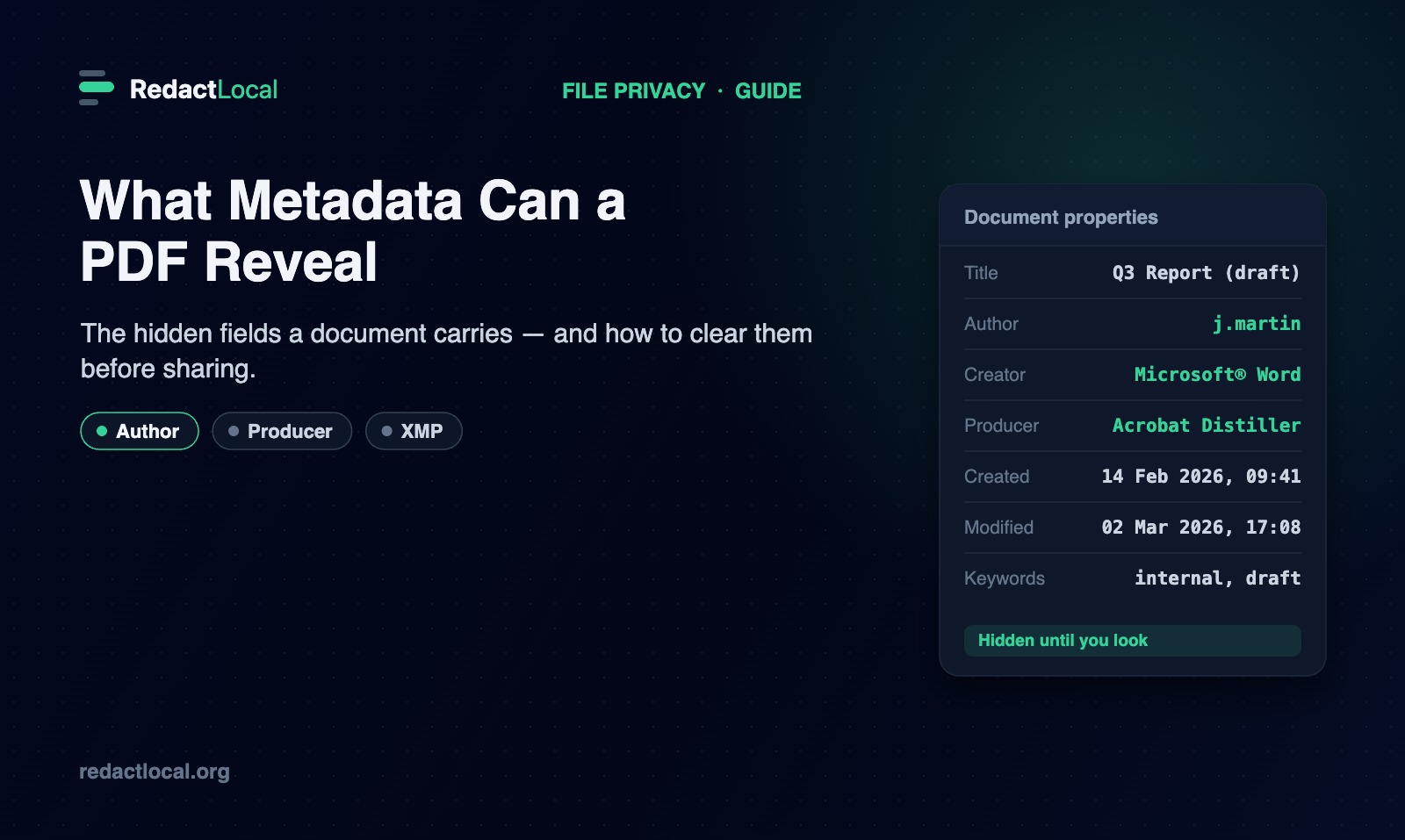
Every PDF stores a small set of properties alongside its visible content: who is listed as the author, which program created it, when it was made, and when it was last edited. Most of the time this information is harmless and useful. But it travels with the file, it is not shown on the page, and people rarely think to look at it before they send a document out. This guide explains what PDF metadata actually is, which fields a document can hold, when it is worth paying attention to, and how to remove PDF metadata in your browser without the file leaving your device.
What PDF Metadata Actually Is
Metadata is data about the document rather than the content of the document. When you open a PDF's "Properties" or "Document Properties" dialog in a reader, the fields you see there — title, author, the application that produced the file, the dates — are its metadata. They are stored in the file's structure, separate from the text and images you read on each page.
A PDF holds this information in two places. The first is the document information dictionary, an older set of named fields that most tools still write. The second is an XMP metadata block, a newer, more extensible format that can carry the same basic details plus additional information such as editing history or software identifiers. A single file may use one, the other, or both.
The Metadata Fields a PDF Can Carry
Not every PDF fills in every field. What is present depends entirely on the software that made it and the choices of whoever created it. These are the standard properties you are most likely to encounter:
| Field | What it usually holds |
|---|---|
| Author | A person or account name, often taken from the operating-system user or the application's settings. |
| Title | A document title, which may differ from the filename and can reflect an internal name or an earlier draft. |
| Subject | A short description of what the document is about. |
| Keywords | Tags added for search or categorisation, sometimes internal labels like "draft" or a project codename. |
| Creator | The program the document was originally authored in — for example a word processor or design tool. |
| Producer | The software that generated the final PDF, such as a PDF library or an "export to PDF" feature. |
| Creation date | When the PDF was first produced. |
| Modification date | When the file was last changed. |
| XMP block | An extensible metadata section that can repeat the fields above and add details such as a creator tool or edit history. |
Read on their own, these fields are mundane. The point is simply that they exist, they are easy to overlook, and they are not part of the page you proofread before sharing.
Metadata Is Not the Same as the Visible Content
It helps to keep two layers separate in your mind. The visible content is everything rendered on the page: paragraphs, tables, images, signatures. The metadata is the descriptive information attached to the file around that content.
Removing metadata does not change a single word on the page, and editing the page does not necessarily change the metadata. They are independent. That distinction matters for two reasons: clearing metadata is safe to do because it leaves your document looking identical, and clearing metadata is not a substitute for redacting sensitive text that is actually printed on the page. Each addresses a different layer.
Why Metadata Sometimes Matters
Most of the time, metadata is nothing to worry about. It becomes worth a second thought when a document moves from an internal setting to an external one, or from a named author to an audience who should not see that name. A few realistic examples:
- Business documents. A proposal exported from a template might list the author as a specific employee, or carry a title field left over from the document it was copied from. Neither is dangerous, but you may simply prefer a clean file when it goes to a client.
- Legal and court filings. Some filing rules and review workflows expect documents to be free of unnecessary identifying metadata. Clearing it is often a routine housekeeping step rather than a response to any specific risk.
- Anonymous or blind submissions. If a piece of work is meant to be reviewed without the reviewer knowing who wrote it, an author field can quietly defeat that. This is a common reason academics and journalists check metadata.
- Documents shared publicly. When a file is posted online rather than sent to one person, it is reasonable to want it to carry as little about its origin as you intend.
None of this means a PDF with metadata is unsafe. It means metadata is information, and it is worth knowing what a file carries so you can decide what to keep. Often the answer is that it is perfectly fine to leave as is.
How to Inspect a PDF's Metadata
Before removing anything, it is useful to see what is actually there. There are two straightforward ways:
- Your PDF reader. Most readers show the basic fields under File → Properties (or Document Properties). This covers the document information dictionary — author, title, creator, producer and dates.
- The PDF Privacy Scanner. For a fuller picture, the scanner reads a file in your browser and reports the metadata it finds, including the XMP block, alongside other things that live outside the visible text such as annotations, links and embedded attachments. It only reports what it can actually detect, and nothing is uploaded.
Seeing the fields first means you are deciding with information, not guessing.
How to Remove PDF Metadata Without Uploading It
RedactLocal's Remove PDF Metadata tool clears these fields in your browser. The file is read into memory on your device and processed there; it is never sent to a RedactLocal server. Here is how it works, step by step:
- Open the tool and add your PDF. Drag the file in or click to choose it. The tool reads the document and shows you the metadata it found — the information-dictionary fields and whether an XMP block is present — so you can see exactly what is there before you act.
- Remove the metadata. One action deletes the standard fields (Title, Author, Subject, Keywords, Creator, Producer, and the creation and modification dates) and removes the XMP metadata block.
- It verifies the result. The tool re-opens the exported file and reads the fields back to confirm they are gone. If any field could not be removed safely, it tells you which, rather than claiming success it cannot prove.
- Download the clean copy. You get a new PDF with the metadata cleared. The visible text and layout are unchanged, because the pages are not rewritten — only the metadata is removed.
One practical note: the tool clears a PDF's document metadata — the information-dictionary fields and the XMP block. That is what "remove PDF metadata" usually means, and it is exactly what the Properties dialog shows. It does not rewrite the page content, so anything printed on the page stays on the page.
What Removing Metadata Does and Doesn't Do
Clearing document metadata handles the author, software and date fields. It is worth being clear about what that does not cover, so you know when to reach for a different step:
- It does not touch the visible page. If a name, address or account number is printed in the document itself, that is page content, not metadata. To remove information that appears on the page, use the PDF Redactor, which flattens the page so the text is destroyed rather than hidden.
- It is not the same as checking for a hidden text layer. If you have covered text with a black box in another editor, the words may still be in the file. The PDF Leak Checker reads a PDF's text layer and tells you whether any text is still extractable.
- Other elements live outside the basic metadata. Annotations and comments, external links, form-field values and embedded attachments are part of the document's structure. The Privacy Scanner reports these so you can see what a file carries beyond its metadata.
Think of metadata removal as one clean, specific step: it makes the document's properties match what you intend to share. For most files, that is all you need.
Frequently Asked Questions
How do I remove the author from a PDF?
Open the PDF in the Remove PDF Metadata tool and remove its metadata. The author field is cleared along with the other document properties, and the tool re-opens the file to confirm the field is gone. The document's visible content is not changed.
Does removing metadata change how my PDF looks?
No. Only the document properties are removed. The text, images and layout on every page stay exactly as they were, because the pages themselves are not rewritten.
Is my file uploaded when I remove its metadata?
No. The PDF is read and rewritten in your browser, on your device. It is never sent to a RedactLocal server. You can confirm it by disconnecting from the internet before you start — the tool keeps working.
Does a PDF with metadata mean my file is unsafe?
Not at all. Metadata is normal, and in most cases it is harmless. It is simply information attached to the file. Knowing what is there lets you decide whether to keep it; often it is fine to leave as is.
Can I remove metadata from a password-protected PDF?
Not directly. A PDF that is encrypted with a password cannot be edited until the password is removed in your PDF application. Once the file opens without a password, you can clear its metadata.
What is XMP metadata?
XMP is a newer, extensible metadata format a PDF can carry alongside the basic document properties. It can store the same fields plus extra details such as the tool that created the file. The metadata remover clears the XMP block as well as the standard fields.
Related tools
Everything below runs in your browser, with nothing uploaded:
- Remove PDF Metadata — clear author, software and date fields and the XMP block from a PDF.
- PDF Privacy Scanner — see the metadata, links, annotations and other content a file carries.
- PDF Leak Checker — check whether a PDF still has extractable text under a redaction.
- PDF Redactor — black out and flatten text on the page so it is destroyed, not hidden.
Clear Your PDF's Metadata, Privately
See what a document carries, remove its author, software and date fields, and download a clean copy — all in your browser, with the file never leaving your device.
Remove PDF Metadata