What Can a PDF or Photo Reveal About You Before You Share It?
Files carry more than the content you see on screen. This is a plain guide to the information a PDF or image can hold, why some of it is worth a second look, and how to check a file on your own device before you send it.
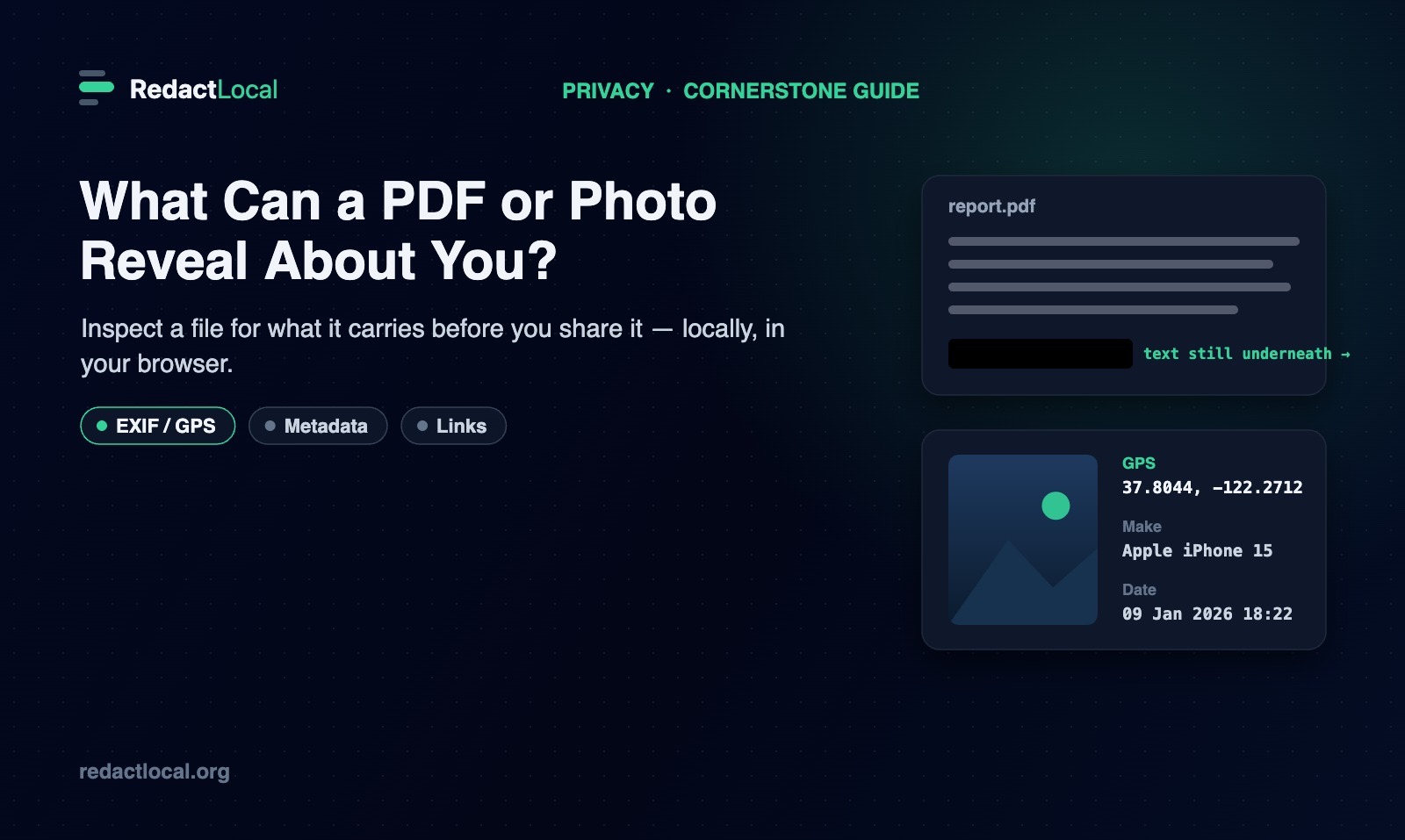
When you look at a document or a photo, you see its content: the words on the page, the picture in the frame. But a file is more than its content. It also carries descriptive information the application wrote when it was saved, and sometimes extra pieces that were added along the way. Most of this is ordinary and harmless. Occasionally it includes something you would rather not pass on without knowing — a name, a location, a leftover comment. This guide walks through what a PDF and a photo can actually contain beyond what you see, and how to inspect a file locally so you can decide for yourself what to share.
Two things are worth saying up front, because they shape everything below. First, not every file contains these things — what is present depends entirely on how the file was made. Second, finding something is not the same as finding a problem. The goal here is awareness, not alarm: knowing what a file holds so your decision is an informed one.
Two Layers: What You See and What the File Carries
It helps to picture every file as having two layers. The first is the visible content — everything rendered on the page or in the image. The second is everything else the file stores around that content: metadata describing the file, and, in a PDF, structural elements like comments, links and attachments.
You review the first layer naturally, because you can see it. The second layer is easy to forget precisely because it does not appear on screen. Checking a file before sharing simply means taking a moment to look at that second layer too.
What a PDF Can Carry
A PDF is a container. Alongside the pages you read, it can hold a range of other elements. Here are the ones most worth understanding.
Author, creator and producer metadata
Every PDF can store document properties: an author name, a title and subject, keywords, the program it was created in, and the software that produced the final PDF. These are written automatically by most tools and are not shown on the page. They are usually mundane, but an author field can carry a real name, and a title or keyword field sometimes reflects an earlier draft or an internal label.
Creation and modification dates
A PDF typically records when it was created and when it was last modified. These timestamps are ordinary, but they can reveal when a document was produced or last edited — occasionally more than you intend when the exact timeline matters.
XMP metadata
Beyond the basic properties, a PDF can carry an XMP metadata block: a newer, extensible format that can repeat those fields and add others, such as the specific tool that created the file or elements of its edit history. A file may have the basic properties, the XMP block, or both.
Annotations and comments
Comments, sticky notes, highlights, stamps and other markups are stored as separate objects in the file. Because they sit on top of the content rather than in the main text, they are easy to overlook — and a review comment can carry a reviewer's name or a candid remark that was never meant for the final audience.
External links
A PDF can contain hyperlinks pointing to external destinations. The link text on the page might say one thing while the underlying address points somewhere else, so it is worth knowing which domains a document links out to.
Embedded attachments
PDFs can carry whole files embedded inside them — a spreadsheet, another PDF, an image. These attachments travel with the document even though they are not visible on any page, so a file can be larger, and carry more, than it appears.
Document JavaScript and actions
The PDF format allows documents to include JavaScript or scripted actions that run in some readers. Most PDFs have none. Where it exists, it is worth knowing it is there — a careful tool will report that a document contains a script without ever executing it.
Form fields and signature fields
Interactive forms store the values entered into their fields, and a document can include digital signature fields. Form data is part of the document's structure, not necessarily a privacy concern, but it can hold entered details such as names or answers. A signature field tells you a signature was placed, though its presence alone does not confirm the signature is valid.
Searchable text — and why a black box is not always redaction
Most PDFs have a searchable text layer. That is useful, but it is also the source of the most common privacy mistake with documents. If someone "redacts" a PDF by drawing a black rectangle over text in an ordinary editor, the box sits on top of the words — the text underneath stays in the file and can be copied or extracted. A drawn black box is not necessarily true redaction. Genuine redaction removes the text, which is why a reliable approach flattens the page to an image so there is no text layer left. You can read more in The Black Box Flaw, and verify any specific file with the PDF Leak Checker.
What a Photo or Image Can Carry
Images have their own kind of hidden information, stored in metadata the camera or editing software writes. Again, not every image has it — some apps and platforms strip it — but when it is present, it can be surprisingly specific.
EXIF: camera make, model and date/time
Photos taken on a camera or phone usually embed EXIF metadata. This commonly includes the camera or phone make and model, the lens, and the date and time the photo was taken. On its own this is innocuous, but it can tie a set of photos to the same device or establish exactly when a picture was captured.
GPS coordinates
This is the one most people have not considered. Many phones record the exact GPS coordinates where a photo was taken, and store them in the image. Shared without thought, a holiday snap or a photo taken at home can carry the precise location it was captured. If there is one field worth checking before posting an image publicly, it is this one. (RedactLocal reports coordinates if they are present; it does not look them up or map them.)
Editing software, artist and copyright fields
Images can also store the software used to edit them, and descriptive fields such as an artist or author name, a copyright notice, and an image description or caption. These are often filled in deliberately by photographers, but they can also carry a name you did not mean to attach.
PNG and WebP metadata
EXIF is most associated with JPEG photos, but other formats carry metadata too. PNG files can embed text chunks holding comments, author names, software identifiers or descriptions, and can store a modification time. WebP files can carry EXIF and XMP blocks of their own. The format does not tell you whether metadata is present; you have to look.
How to Inspect a File Locally
You do not need to upload a file to a website to find out what it contains. RedactLocal's Privacy Scanner reads a PDF or an image entirely in your browser, on your device, and reports what it can detect. Nothing is sent anywhere.
Drop in a file and it inspects it in place. For a PDF, it reports the document metadata and XMP block, and checks the document's structure for annotations and comments, external links, form and signature fields, document JavaScript, embedded attachments and a searchable text layer. For an image, it reads the EXIF data — including GPS, camera make and model, dates, editing software and author fields — and the text or metadata blocks that JPEG, PNG and WebP files can carry.
Findings are grouped so you can read them at a glance: location data is flagged for close attention, metadata and structural elements are listed for review, and ordinary file information is kept separate. The scanner reports only what it actually finds, and where something exists but cannot be fully interpreted in a browser, it says so rather than guessing.
What the Scanner Can and Can't Tell You
Being clear about limits is part of using any tool well. A few things are worth keeping in mind:
- It is not antivirus, and it does not score risk. The scanner describes what a file contains. It does not label a file "safe" or "dangerous", and it does not scan for malware. What a finding means for you depends on your situation and your judgement.
- Not every finding is a concern. A colour profile, an orientation tag, a form field or a creation date is usually just part of a normal file. The scanner separates location data and metadata from routine file information precisely so you are not left guessing which is which.
- It cannot detect every possible property. File formats are deep and varied. The scanner reads what it can reliably parse in a browser. Some formats — notably HEIC photos — can only be partially inspected, and proprietary camera "maker-note" data is not decoded. It does not claim to surface everything.
- It does not open what it reports. It never executes a document's JavaScript, follows its links, or extracts its attachments. It only tells you they are there.
- Hidden or off-page content is a separate question. The scanner is not designed to find text tucked behind a drawn box or positioned off the visible page. For that, use the Leak Checker to read a PDF's text layer and the PDF Redactor to remove content properly.
What to Do With What You Find
Once you have looked, acting on it is straightforward, and each need has a dedicated step. All of these run in your browser, with nothing uploaded:
- To clear a PDF's metadata — the author, software and date fields and the XMP block — use Remove PDF Metadata. It leaves the visible pages unchanged.
- To strip metadata from a photo, including GPS and camera fields, use Remove Image Metadata. The picture itself is untouched.
- To remove something printed on the page of a PDF, use the PDF Redactor, which flattens the page so the text is destroyed rather than hidden.
- To hide a face, name or detail in an image, use Redact Image to black it out so it cannot be recovered.
- To confirm a redaction worked, the PDF Leak Checker reads the file's text layer and tells you whether anything is still extractable.
For most files, you will look, find nothing that concerns you, and send it as it is. That is a perfectly good outcome — the value is in knowing, not in always having something to remove.
Frequently Asked Questions
What information is hidden in a PDF?
A PDF can carry document metadata (author, title, creator and producer software, and dates), an XMP metadata block, annotations and comments, external links, interactive form and signature fields, embedded attachments, document JavaScript, and a searchable text layer. Not every PDF has all of these; what is present depends on how it was made. You can see what a specific file contains with the Privacy Scanner.
How do I check what my photo reveals?
Open the image in the Privacy Scanner. It reads the photo's EXIF and other metadata in your browser and reports fields such as GPS location, camera make and model, the date taken, and editing software — without uploading the file.
Do all photos contain GPS location data?
No. Whether location is stored depends on the device and its settings, and some apps and platforms remove it when you share. Many photos have none. The only way to know about a particular image is to check it.
Does metadata mean my file is unsafe?
No. Metadata is normal and usually harmless. It is simply information attached to the file. Checking it lets you decide what to keep; often the answer is that there is nothing to change.
Is the Privacy Scanner like antivirus?
No. It does not scan for malware or rate a file as safe or dangerous. It is a read-only inspector that describes the metadata and structure it can detect, so you can make your own decision.
Is my file uploaded when I scan it?
No. The file is read and inspected in your browser, on your device. It is never sent to a RedactLocal server. You can confirm it by disconnecting from the internet before you scan — it keeps working.
Related tools
Everything below runs in your browser, with nothing uploaded:
- Privacy Scanner — inspect a PDF or image for the metadata, links and other content it carries.
- Remove PDF Metadata — clear a PDF's author, software and date fields and XMP block.
- Remove Image Metadata — strip EXIF, GPS and other metadata from a photo.
- PDF Leak Checker — check whether a PDF still has extractable text under a redaction.
- PDF Redactor — remove text from a page by flattening it, not just covering it.
- Redact Image — black out a face or detail in a photo so it cannot be recovered.
See What a File Carries Before You Share It
Inspect a PDF or photo in your browser and read what it contains — metadata, links, attachments, location data — with the file never leaving your device.
Open the Privacy Scanner