How to Convert PDF to Word Without Uploading Your File
You need an editable version of a PDF, but the document may be sensitive and most converters send it to a server first. Here is how to convert a PDF to Word in your browser, with the file never leaving your device.
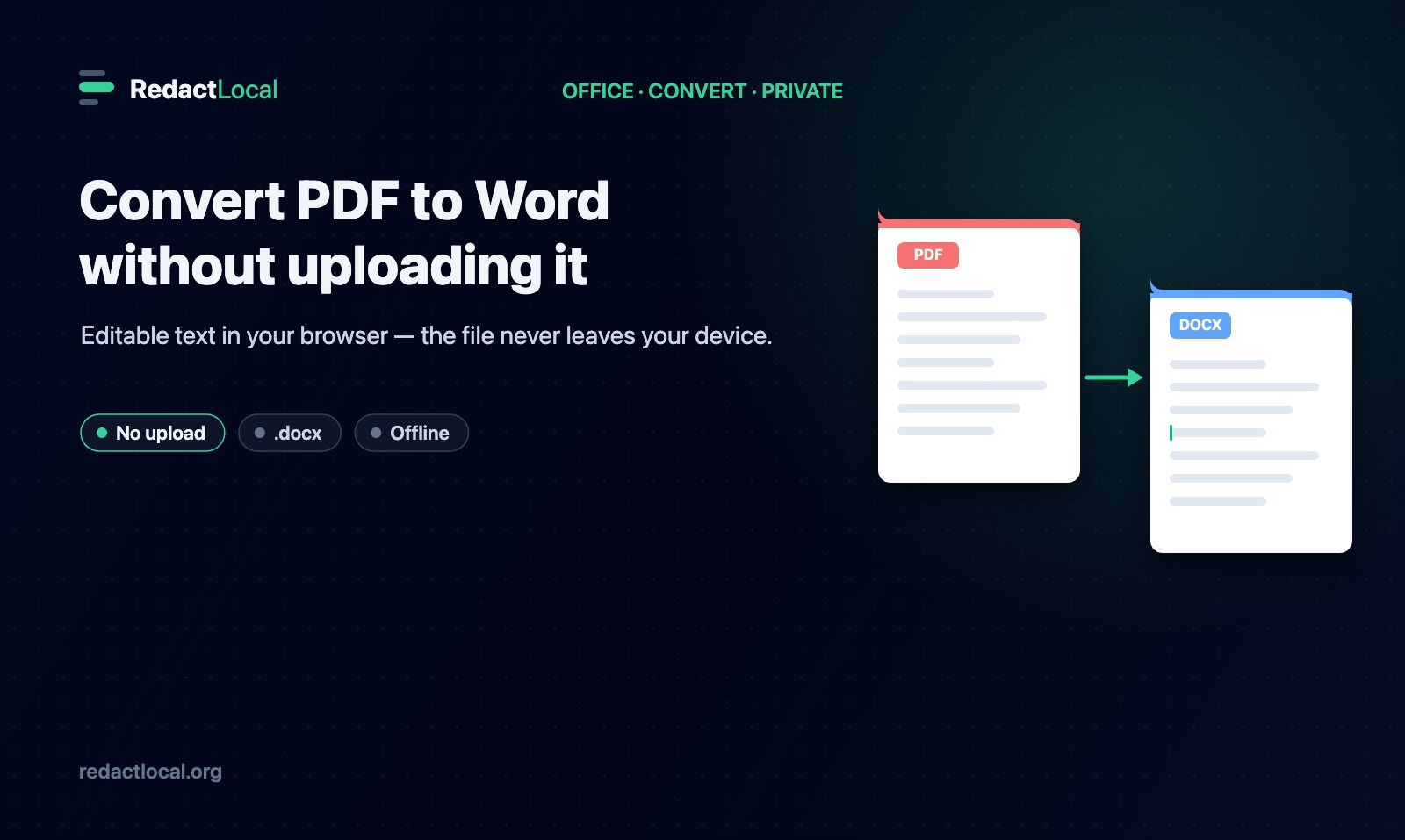
A PDF is built to look the same everywhere, which is exactly what makes it awkward to edit. When you need to change the wording, reuse a few paragraphs, or hand a document to someone who works in Word, you need the text back in an editable form. The quickest route is a PDF-to-Word converter, but most of them upload your file to a server to do the work, and the document you are converting is often one you would rather not hand to a third party. This guide shows how to convert a PDF to Word in your browser, without uploading it, and what to expect from the result.
Why "Without Uploading" Matters When You Convert a PDF
The PDFs people most often need to edit are the ones with real content in them: a contract, a letter, a report, a résumé, an invoice. Those documents tend to carry names, figures and other details you would not post publicly. A typical online converter uploads your file to a server, converts it there, and sends the result back. That means your unedited document leaves your control and sits, however briefly, on infrastructure you cannot see.
A browser-based converter works differently. The file is read and converted on your own device, in the tab you opened, and never sent anywhere. For an everyday, non-sensitive PDF this is simply faster and account-free. For anything confidential, it is the difference between keeping the document on your machine and handing a copy to a company you have no relationship with.
How to Convert a PDF to Word Without Uploading It (Step by Step)
RedactLocal's PDF to Word converter runs entirely in your browser. The file is read into memory on your device and converted there; it is never sent to a RedactLocal server.
- Open the tool. Go to the PDF to Word converter in any modern browser. There is nothing to install and no account to create.
- Add your PDF. Drag the file onto the page or click to choose it. It opens straight away because it is read directly into your browser, not uploaded.
- Convert to Word. The tool reads the text, groups it into paragraphs in reading order, and picks out headings by their size. It then builds a standard
.docxfile. - Download and keep editing. Save the Word document and open it in Microsoft Word, Google Docs, LibreOffice or any editor. The text is yours to change.
Because the conversion happens on your device, you can do it with your Wi-Fi switched off, which is the simplest proof that the file never left your machine.
What Converts Well — and What Doesn't
Honest expectations make for a better result. A PDF does not store a document the way Word does. Word holds structured paragraphs, styles and tables; a PDF mostly records where each piece of text sits on the page. Converting means reconstructing editable structure from those positions, and how cleanly that works depends on the document.
| Converts cleanly | Needs adjustment afterward |
|---|---|
| Straightforward, text-based PDFs — letters, reports, articles, contracts | Complex multi-column layouts, where reading order can be harder to reconstruct |
| Running paragraphs and body text, kept in reading order | Tables, which come across as text rather than true Word tables |
| Headings, picked out by their larger size | Exact fonts, spacing and precise positioning, which may shift |
Two limits are worth stating plainly. Images are not carried over — the converter extracts text, so pictures and logos in the PDF will not appear in the Word file. And a scanned, image-only PDF has no text to extract: if the pages are pictures of a document rather than real text, there is nothing for a text converter to read. A good tool tells you this instead of handing back an empty file, and it does not quietly send your document to a remote service to read it for you. If you only need the pages as pictures, convert them with PDF to JPG or PDF to PNG instead.
Editable Text vs. an Exact Copy of the Layout
It helps to be clear about what you are asking for. If your goal is to edit the words — fix a clause, update a figure, reuse a section — then an editable Word file is exactly right, and small layout differences are easy to tidy up. If your goal is a pixel-perfect replica of how the PDF looks, converting to Word is the wrong tool: the PDF already is that replica. Keep the PDF for appearance, and convert to Word when you need to work with the text.
In short: a PDF-to-Word conversion recovers editable text, not an identical copy of the page. For clean, text-based documents that gives you something you can start editing immediately; for complex layouts, expect to do a little tidying.
Converting a Sensitive Document? Check It First
If the PDF you are converting contains personal or confidential information, it is worth a quick look before the document moves on, whether that is into Word or on to someone else. Both of these run in your browser, with nothing uploaded:
- The Privacy Scanner shows what a file carries beyond the visible text — document metadata, annotations, links and more — so you know what is travelling with it.
- The Remove PDF Metadata tool clears the author, software and date fields from the PDF if you would rather they did not come along.
Frequently Asked Questions
Is my PDF uploaded when I convert it to Word?
No. The PDF is read and the Word document is built in your browser, on your device. It is never sent to a RedactLocal server. You can confirm it by disconnecting from the internet before you start — the tool keeps working.
Will the Word file look identical to the PDF?
No. The converter recovers editable text in reading order, with paragraphs and headings — not a pixel-perfect copy. Complex layouts, columns, tables, fonts and spacing may need adjusting afterward. If you need the exact appearance, keep the PDF.
Does it work on a scanned PDF?
Only if the PDF has searchable text. A scanned, image-only PDF has no text to extract, so the tool tells you instead of creating an empty file. It does not send your document to a remote service to read it. For image pages, use PDF to JPG or PDF to PNG.
What format do I get?
A standard .docx file, which opens in Microsoft Word, Google Docs, LibreOffice and other editors.
Are images from the PDF included?
No. The converter extracts text, so images and logos in the PDF are not carried into the Word document.
Is it free?
Yes. There is no account, no installation, and no upload. Open the tool, convert your PDF, and download the Word file.
Related tools
Everything below runs in your browser, with nothing uploaded:
- PDF to Word — extract editable text from a PDF into a .docx.
- PDF to Excel — pull structured tables out of a PDF into a spreadsheet.
- PDF to PowerPoint — turn PDF pages into editable slides.
- Compress PDF — make a PDF smaller before sharing it.
- Privacy Scanner — see what a file reveals before you send it.
Convert Your PDF to Word, Privately
Turn a PDF into an editable Word document in your browser and keep working — with the file never leaving your device.
Convert PDF to Word